Windows Terminal
I have been having a lot of fun experimenting with Windows Terminal, and that is the reason I decided to share this guide.
It will be updated over time as I add new content and practical examples.
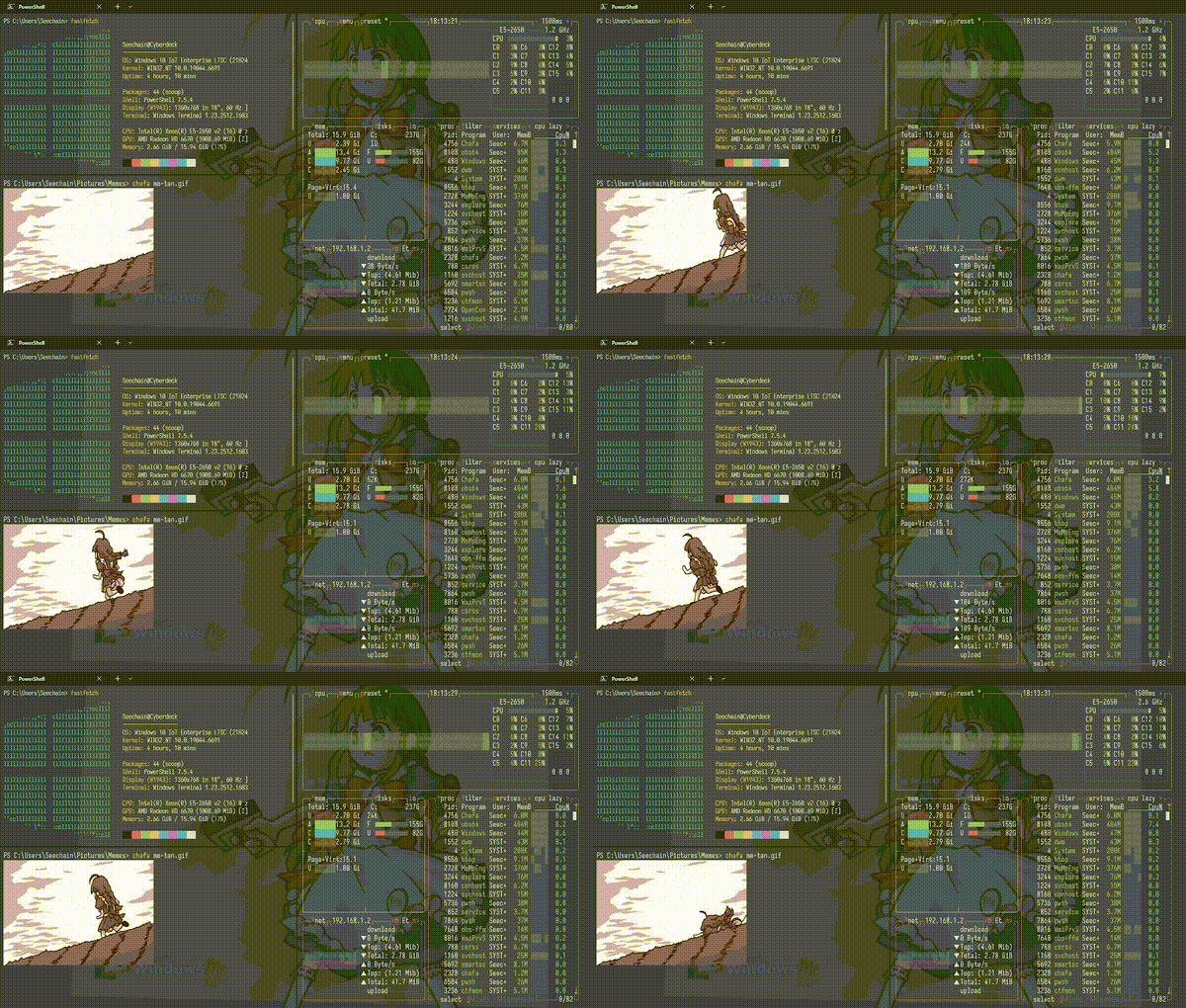
Requirements
Windows 10 (version 19041 or later) or Windows 11, PowerShell 5.1 or later, and an active internet connection.
Install Scoop
Scoop is a command-line package manager for Windows. It is the Windows equivalent of Homebrew or apt-get.
Open a PowerShell, copy and paste the code below, then press enter.
Set-ExecutionPolicy -ExecutionPolicy RemoteSigned -Scope CurrentUser
Invoke-RestMethod -Uri https://get.scoop.sh | Invoke-Expression
Install Windows Terminal
If you are using Windows 11, Windows Terminal is already installed by default, so you can skip this step.
Open a PowerShell, copy and paste the code below, then press enter.
scoop bucket add extras
scoop install extras/vcredist2022
scoop install extras/windows-terminal
All the commands shown below are intended to be executed inside Windows Terminal.
Contents
YT-DLP
YT-DLP is a feature-rich command-line audio/video downloader with support for thousands of sites.
Install the tools required for audio downloading and stream playback:
scoop install yt-dlp mpv ffmpeg deno
To download a YouTube video as an MP4 file:
yt-dlp -f "bestvideo[ext=mp4]+bestaudio[ext=m4a]/mp4" https://www.youtube.com/watch?v=example
To download audio from a YouTube video in MP3 format:
yt-dlp -x --audio-format mp3 https://www.youtube.com/watch?v=example
To download audio from a YouTube video in MP3 format with the best quality and embedded metadata:
yt-dlp -x --audio-format mp3 --audio-quality 0 --embed-metadata --embed-thumbnail --add-metadata --extractor-args "youtube:player_client=android" -o "%(artist,creator,uploader)s - %(title)s.%(ext)s" https://www.youtube.com/watch?v=example
MPV
MPV is a free media player for the command line.
To watch a Twitch stream with MPV:
mpv https://www.twitch.tv/User_name
To listen to a Twitch stream audio only:
mpv --no-video https://www.twitch.tv/User_name
To loop a YouTube track with audio only:
mpv --no-video --loop https://www.youtube.com/watch?v=example
To stop playback in MPV, press Ctrl + C.
FFmpeg
FFmpeg is a powerful command-line tool for processing video.
To capture the desktop screen as a video file (video only, no audio):
ffmpeg -f gdigrab -framerate 30 -i desktop output.mp4
This command captures the Windows desktop at 30 FPS and saves it as output.mp4.
Audio is not recorded.
Press Q to stop the capture.
To convert a video file into a GIF:
ffmpeg -i output.mp4 -vf "fps=15,scale=600:-1:flags=lanczos" output.gif
This command takes output.mp4 as input, sets the output frame rate to 15 FPS,
rescales the video to a width of 600 pixels while preserving aspect ratio,
and uses the Lanczos scaling algorithm for better quality.
To generate scaled thumbnail images:
ffmpeg -i %d.jpg -vf "scale=320:-1" %d_thumb.jpg
This command reads a sequence of images named 1.jpg, 2.jpg, 3.jpg and creates
scaled thumbnails with a width of 320 pixels while preserving aspect ratio.
Deno
Deno is a JavaScript/TypeScript runtime outside the web browser.
Deno and YT-DLP work together to bypass the protection mechanisms that YouTube uses to block unauthorized downloads.
To install Deno using Scoop:
scoop bucket add main
scoop install main/deno
Fastfetch
Fastfetch is a lightweight system information tool for the terminal.
To install Fastfetch using Scoop:
scoop install fastfetch
To display system information, simply run:
fastfetch
Btop
Btop is a modern resource monitor for the terminal.
To install btop using Scoop:
scoop install btop
To start the resource monitor:
btop
Aria2
Aria2 is a lightweight and fast command-line download manager.
It supports HTTP, HTTPS, FTP, BitTorrent, and Metalink, and can download multiple files simultaneously.
To install Aria2 using Scoop:
scoop install aria2
To download a file using a direct URL:
aria2c https://example.com/file.zip
To resume an interrupted download:
aria2c -c https://example.com/file.zip
Chafa
Chafa is a terminal graphics utility that renders images using ANSI characters and colors.
It allows viewing images directly inside Windows Terminal.
To install chafa using Scoop:
scoop install chafa
To display an image in the terminal:
chafa image.png
Chafa supports multiple output modes and automatically adapts to the terminal size and color capabilities.
Nano
Nano is a simple and user-friendly terminal-based text editor.
To install nano using Scoop:
scoop install nano
To open or create a file with nano:
nano filename.txt
Common keyboard shortcuts in nano:
- Ctrl + O — save the file
- Ctrl + X — exit the editor
- Ctrl + K — cut the current line
- Ctrl + U — paste the cut text
FZF
FZF is a command-line fuzzy finder that lets you quickly search and select files, directories, processes, and more in your terminal.
To install fzf using Scoop:
scoop bucket add main
scoop install main/fzf
You can combine fzf and nano to quickly search for a file and edit it in nano.
nano $(fzf)
Webtorrent-cli
Webtorrent-cli is a simple torrent client for use in Node.js.
First, you need to install Node.js using Scoop:
scoop bucket add main
scoop install nodejs
Once Node.js is ready, install Webtorrent-cli globally via npm:
npm install webtorrent-cli -g
Usage
Download a torrent from a .torrent file or a magnet link:
webtorrent "file.torrent"
webtorrent "magnet:?xt=urn:btih:..."
Streaming Video with MPV
Stream the video directly to MPV as it downloads, without waiting for the file to complete:
webtorrent "file.torrent" --mpv
Ani-cli
Ani-cli is a command-line tool for searching anime directly from the terminal,
using external media players such as MPV and VLC for playback.
Installation
To install ani-cli using Scoop:
scoop bucket add extras
scoop install ani-cli
Install the required dependencies:
scoop install git fzf ffmpeg mpv
For downloading support, it is recommended to also install:
scoop install yt-dlp aria2
Usage
Search and watch an anime:
ani-cli one piece
Update ani-cli:
ani-cli -U
Display help:
ani-cli -h
Termusic
Termusic is a terminal music player written in Rust.
Installation
To install Termusic using Scoop:
scoop bucket add main
scoop install main/termusic
Usage
To browse and play your music files, simply run:
termusic
Yazi
Yazi is a blazing fast terminal file manager written in Rust.
Installation
To install Yazi using Scoop:
scoop install yazi
Install the optional dependencies (recommended):
scoop install ffmpeg 7zip jq poppler fd ripgrep fzf zoxide resvg imagemagick
Usage
To start Yazi in the current directory:
yazi
Nerd Fonts
For Yazi to correctly render icons, file types, and UI symbols, it is necessary to install a Nerd Font. Without one, you will likely see broken squares or missing characters in the terminal.
To install a font like Iosevka via Scoop, the recommended method is:
scoop bucket add nerd-fonts
scoop install nerd-fonts/Iosevka-NF
After installation, you must update your Windows Terminal settings (JSON or UI) to use the new font face.
MIME types
Yazi relies on file(1) to detect mime-types. The most reliable way to get this on Windows is via Git:
To allow Yazi to use file(1), you must point the YAZI_FILE_ONE environment variable to the Git executable. Since you are using Scoop, run the following command in PowerShell:
[System.Environment]::SetEnvironmentVariable('YAZI_FILE_ONE', "$env:USERPROFILE\scoop\apps\git\current\usr\bin\file.exe", 'User')
To verify the variable was set correctly, open a new PowerShell window and run:
dir env:YAZI_FILE_ONE
Content on this site is under CC0 1.0 license.